Global Illumination
Global illumination (GI) is the light that reaches a surface after bouncing off other surfaces: the red glow on a white wall next to a red carpet, the soft light in a room lit only through a window, the reflection of a lamp in a polished floor. In Plasma, GI is fully dynamic. Nothing is baked: every frame the renderer traces rays into the scene, so bounce light and reflections follow moving lights, opening doors, a changing time of day and streamed-in geometry.
GI has two parts, each with its own technique:
- Diffuse GI: bounce light on matte surfaces, colour bleeding and occlusion of the sky. Selected with
Rendering.GI.Diffuse.Technique. - Specular GI: reflections. Selected with
Rendering.GI.Specular.Technique.
Two related systems sit next to GI and are covered on their own pages: ambient occlusion, which darkens creases, and the direct lighting modes, which can replace shadow maps with ray-traced shadows.
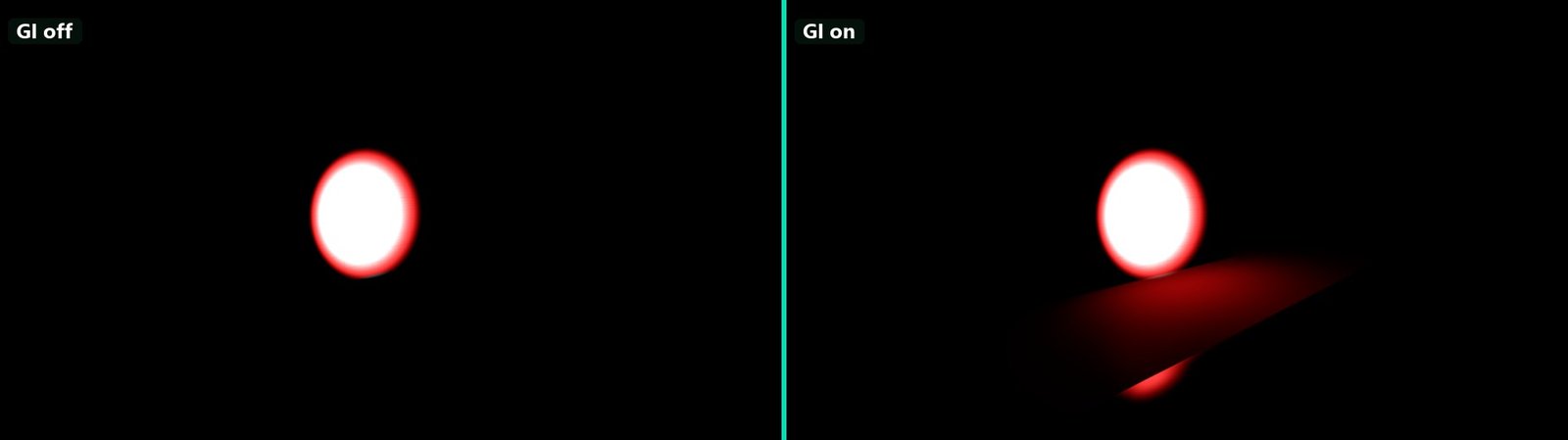
A spot light aimed only at a red wall. Without GI (left) the floor receives no light; with screen-probe GI (right) the light the wall reflects lights the floor red.
Requirements
GI needs a ray tracing backend. Rendering.GI.TraceBackend decides which one:
| Value | Backend | When it is used |
|---|---|---|
| 0 | Auto (default) | Hardware ray tracing when Rendering.RT.Enable is on and the GPU supports it. Otherwise the software backend, but only if Rendering.RT.Software.Enable is on. |
| 1 | Hardware only | Hardware ray tracing or nothing. |
| 2 | Software | Always traces in software, a compute-shader BVH that runs on GPUs without ray tracing hardware. |
- Hardware ray tracing needs
Rendering.RT.Enable(off by default, saved with the CVars; its description says it needs the graphics device to be recreated, so restart after changing it) and a GPU and driver with ray tracing support. On DX12,Rendering.DX12.ExposeRayTracingmust also stay on (the default). - Software ray tracing works on any GPU that supports buffer device addresses. Switching to it reloads the loaded meshes so they can build their software BVH, which takes a moment in a large scene. It traces opaque geometry only, has no alpha-tested surfaces, and costs more per ray than hardware ray tracing.
Diffuse GI (screen probes and radiance cascades) and ray-traced reflections run on either backend. Path tracing, ray-traced ambient occlusion and the ray-traced direct lighting modes need hardware ray tracing.
Quality presets do not switch ray tracing on, and they do not recreate the device. Rendering.RT.Enable belongs to the project: put it in <project>/RuntimeConfigs/CVars.cfg, which is applied on every start before the graphics device is created (the command line still wins). In the editor you can try it in the Quality Settings panel under Global illumination › Hardware ray tracing.
Without ray tracing
When no backend is available, the GI pass logs a warning once and the scene falls back to the non-ray-traced lighting:
- There is no diffuse bounce light. Surfaces get the sky light (or ambient light) as unoccluded ambient light, darkened only by ambient occlusion.
- With the specular technique set to Screen Space (0), reflections still work: screen-space reflections need no rays. With any other specular technique, reflections fall back to the reflection probes and the sky.
- Ray-traced AO outputs no occlusion, and the ray-traced direct lighting modes fall back to classic shadow-mapped lighting.
Android builds switch ray tracing and GI off at startup.
Diffuse GI techniques
| Value | Technique | Looks | Cost | Pick it when |
|---|---|---|---|---|
| 0 | Screen probes (screen-probe RTGI, the default) | Bounce light, colour bleeding and sky occlusion, multi-bounce through last frame's result. Random rays, denoised over time, so it can show slight noise or lag after fast changes. | Scales with probe count × rays per probe. Tuned by the quality presets. | The general-purpose choice for games. |
| 1 | Path traced | Direct light, one bounce of diffuse light and traced specular, all from one path per pixel, denoised. Closest to a reference image, but noisier and a single bounce. | The most expensive. Hardware only. | Reference renders, cinematics, comparisons. |
| 2 | Radiance cascades | Stable, noise-free bounce light at a fixed cost; a still camera settles on the same image every frame. | Fixed per frame; many short rays, cheap on hardware ray tracing. | When noise or flicker of screen probes is a problem, or a predictable cost matters. See Radiance Cascades. |
GI as a whole is switched with Rendering.GI.Enabled. Rendering.GI.RTGI.Enabled switches the diffuse trace of screen probes and radiance cascades. Any value of Rendering.GI.Diffuse.Technique other than 1 and 2 is treated as 0. The quality presets never change the diffuse technique; it is a project or scene choice.
Screen probes
Screen-probe RTGI places a probe on the visible surfaces every Rendering.GI.RTGI.ProbeSpacing pixels. Each probe traces Rendering.GI.RTGI.RaysPerProbe rays into the scene and shades what they hit: lights (with shadow rays for the most important ones), emissive surfaces and the sky. With screen feedback (on by default), a ray that hits a surface that was visible last frame also brings back that surface's GI from last frame, so light gains one bounce per frame. The probes are then filtered in space and time and resolved per pixel.
With sky occlusion (Rendering.GI.RTGI.SkyOcclusion, on by default), rays that hit nothing return the sky, and deferred lighting stops adding unoccluded sky light. Interiors are then lit only by the sky they can actually see.
Rays reach geometry outside the view: objects within Rendering.GI.SceneGatherRadius (256 m) of the camera are added to the ray tracing scene even when they are off screen.
| CVar | Default | Description |
|---|---|---|
Rendering.GI.RTGI.Resolution | 1 | Resolution of the diffuse resolve and stabilizer: 0 = full, 1 = half, 2 = quarter. The probe grid is not affected. Set by the presets (Low/Medium 2, High 1, Max 0). |
Rendering.GI.RTGI.ProbeSpacing | 8 | Probe spacing in full-resolution pixels. Halving it traces four times the rays. Low preset: 16. |
Rendering.GI.RTGI.RaysPerProbe | 8 | Rays per probe. Low 4, Medium 8, High and Max 16. |
Rendering.GI.RTGI.SpatialPasses | 3 | Edge-aware spatial filter passes. More passes = less noise, softer detail. |
Rendering.GI.RTGI.MaxRayDistance | 50 | Longest ray in metres. Rays that reach it take the sky. |
Rendering.GI.RTGI.MaxShadowedLights | 2 | Shadow rays per ray hit. With Rendering.GI.RTGI.LightSampling 1 (default) every light contributes on average; with 0 only the strongest lights do. |
Rendering.GI.RTGI.ScreenFeedback | true | Multi-bounce through last frame's GI. Needs the built-in denoiser. |
Rendering.GI.RTGI.ScreenFeedbackScale | 0.8 | Damping of each fed-back bounce, clamped to 0–0.95. |
Rendering.GI.RTGI.SkyOcclusion | true | Missed rays carry the sky and replace the unoccluded sky ambient. |
Rendering.GI.RTGI.RadianceCache | false | World-space radiance cache: ray hits take their later bounces from a cache of world cells instead of last frame's image, so off-screen surfaces are lit too. Off in every preset. |
Rendering.GI.RTGI.HitSkyVisibility | false | A ray hit that screen feedback cannot light traces one ray towards the sky instead of receiving the whole sky. Removes light leaking at screen edges; use together with the radiance cache. |
Rendering.GI.RTGI.EmissiveProxies | true | Ray hits sample emissive meshes as small lights. |
Rendering.GI.RTGI.EmissiveBoost | 1 | Multiplier on emissive light in GI and reflection hits. |
Rendering.GI.RTGI.VRRT | false | Variable rate rays: moves rays from converged probes to probes that are new or noisy, at the same average cost. |
Rendering.GI.RTGI.GuardBand | false | Extends the probe grid past the screen edges, which reduces noise at the borders. Experimental and not saved. |
Rendering.GI.RTGI.DiffuseHistoryWeight | 0.95 | History weight of the full-resolution stabilizer. Higher = steadier, more lag. 0 turns the stabilizer (and screen feedback) off. |
Rendering.GI.RT.Denoiser | 0 | Denoiser for screen probes and ray-traced reflections: 0 = built-in, 1 = NRD ReLAX (in builds with NRD). NRD turns screen feedback off, so interiors get darker. |
Rendering.GI.Diffuse.Intensity | 1 | Debug scale on diffuse GI. Keep 1 for physically based content. |
The world-space radiance cache is described in more detail on the radiance cascades page, which shares it.
Path traced
Rendering.GI.Diffuse.Technique 1 hands all lighting of the view to the path tracing pass: direct light, one bounce of diffuse GI and, with specular technique 3, traced reflections. The GI pass and the analytic light loop are skipped. The main and editor render pipelines contain the path tracing pass; a custom pipeline needs one too. It requires hardware ray tracing and Rendering.RT.Enable. With Rendering.RT.Enable off, the view keeps the analytic lighting but gets no GI at all, because the GI pass stays off for this technique. On a GPU without ray tracing the path tracer logs a warning and traces nothing.
| CVar | Default | Description |
|---|---|---|
Rendering.PathTracing.Denoiser | 1 | 0 = raw signal, 1 = NRD ReLAX. 2 (ReBLUR) is not implemented and uses ReLAX. |
Rendering.PathTracing.ResolutionScale | 1 | Internal resolution as a fraction of the view, 0.25–1. |
Rendering.PathTracing.ResolutionScale.Direct | 1 | Resolution of the direct lighting, independent of the scale above. |
Rendering.PathTracing.ReSTIR.DI / ReSTIR.GI | false | Reservoir resampling for direct light and for the indirect bounce. Less noise for the same rays. |
Rendering.PathTracing.EmissiveLights | true | Samples emissive meshes as lights. |
Rendering.PathTracing.SpecularRoughnessCutoff | 0.7 | Surfaces rougher than this take their reflection from probes instead of a traced ray. |
Rendering.PathTracing.MaxDistance | 10000 | Longest ray in world units. |
Rendering.PathTracing.ReferenceMode | false | Accumulates a progressive reference image while the camera holds still. View it with Rendering.PathTracing.DebugMode 5. |
Radiance cascades
Rendering.GI.Diffuse.Technique 2. Probe cascades over distance bands, merged into one result with a fixed cost and no random noise. Uses the same backends and light-at-hit settings as screen probes. Mono views only; XR views fall back to screen probes. Everything else is on the Radiance Cascades page.
Specular GI and reflections
Specular GI is switched with Rendering.GI.Specular.Enabled (the CVar default is off, but every quality preset turns it on) and its technique with Rendering.GI.Specular.Technique:
| Value | Technique | What it does | Presets |
|---|---|---|---|
| 0 | Screen space | Screen-space reflections (SSR) only. Misses take the reflection probe (or the sky with Rendering.GI.Specular.SSR.MissMode 1). Traces no rays and works without any ray tracing backend. | Low |
| 1 | Screen space + traced misses | SSR first, then only its misses are ray traced. On the software backend this saves most rays. On the hardware backend every pixel is traced unless Rendering.GI.Specular.SSR.HardwarePrepass is on, because hardware rays are cheaper than the pre-pass. | Medium, High, Max |
| 2 | Ray traced (CVar default) | Every reflective pixel traces a ray and shades what it hits, with off-screen objects. | – |
| 3 | Path traced | Reflections from the path tracer. Only meaningful with the path-traced diffuse technique. | – |
Values outside 0–3 are treated as 2.
How it combines with reflection probes. Ray-traced and screen-space reflections replace the reflection probes where they find something. The probes (and the sky light's reflection) remain the fallback:
- Surfaces rougher than
Rendering.GI.Specular.RT.RoughnessThresholdtrace no ray and keep the probe. On the software backend and in screen-space mode, the threshold is capped atRendering.GI.Specular.Software.MaxRoughness(0.6), and rays fade out over the 0.2 roughness above it. - SSR misses in screen-space mode use the probe.
- When ray tracing is unavailable, techniques 1 and 2 fall back to the probes entirely.
So keep reflection probes in a scene even with ray-traced reflections: they light rough surfaces and every surface on GPUs without ray tracing.
| CVar | Default | Description |
|---|---|---|
Rendering.GI.Specular.Enabled | false | Specular GI on or off. All presets set it on. |
Rendering.GI.Specular.Resolution | 1 | Trace and denoise resolution: 0 = full, 1 = half, 2 = quarter. Low/Medium 2, High 1, Max 0. |
Rendering.GI.Specular.RT.RoughnessThreshold | 1 | Surfaces rougher than this keep the reflection probe. 1 traces everything. |
Rendering.GI.Specular.Software.MaxRoughness | 0.6 | Cap on the roughness threshold for the software backend and screen-space mode. |
Rendering.GI.Specular.RT.MaxDistance | 0 | Longest reflection ray. 0 = 250 units. |
Rendering.GI.Specular.RT.Shadows | true | Shadow rays for lights seen in reflections. Off on Low and Medium. |
Rendering.GI.Specular.RT.MaxShadowedLights | 2 | Shadow rays per reflection hit. |
Rendering.GI.Specular.SSR.MaxSteps | 32 | Screen-space march steps per ray, 8–128. |
Rendering.GI.Specular.SSR.Thickness | 0.3 | How far behind the depth buffer a sample may be and still count as a hit. |
Rendering.GI.Specular.SSR.MissMode | 0 | Screen-space mode: misses take 0 = the reflection probe, 1 = the sky. |
Rendering.GI.Specular.AmbientScale | 0.2 | Scale of the sky term in the reflection probe fallback. |
Rendering.GI.Specular.RT.Reuse.Enabled | true | Reuses neighbouring pixels' rays, which lowers noise without more rays. |
Rendering.GI.Specular.Intensity | 1 | Debug scale on specular GI. Keep 1. |
Ambient occlusion
Ambient occlusion darkens creases and contact areas. It multiplies all indirect light: the sky ambient, diffuse GI and specular GI. Rendering.AO.Algorithm picks SSAO (0, default), MSAO (1, multi-scale, can run on the async compute queue) or RTAO (2, ray traced, hardware only). The presets do not change the algorithm. See Ambient Occlusion.
Direct lighting modes
Rendering.DirectLighting.Mode decides how lights are shadowed: 0 = classic shadow maps, 1 = probe cached ray-traced visibility, 2 = ReSTIR DI, 3 = guided. Low, Medium and High use classic lighting, Max uses ReSTIR DI where it is supported, and no preset picks probe cached or guided. Modes 1–3 need hardware ray tracing and fall back to classic lighting without it. See Direct Lighting Modes.
Setting GI per scene, per player and per light
GI settings come from three layers. From the lowest to the highest priority:
- The player's quality preset sets budgets (resolutions, probe spacing, rays, denoise passes) and the specular technique, the direct lighting mode and ray-traced specular shadows. See Quality Presets for the values per tier and Applying Settings for how a game applies them. In the editor, the Quality Settings panel shows every GI setting in the Global illumination, Diffuse: screen probes, Diffuse: radiance cascades, Diffuse: path tracing, Specular, Ambient occlusion and Direct lighting groups, including the project-owned ones such as the diffuse technique and the trace backend.
- Post process volumes override settings for the scene or an area (see below). While a volume overrides a value, it wins over the preset. When it stops, the player's value comes back.
- Per light and per material settings change what feeds GI.
Post process volume
A Post Process Volume has several groups for GI. Each group has its own Override... switch, and only groups whose override is on change anything.
Lighting GI group (OverrideGI):
| Property | Default | Description |
|---|---|---|
OverrideGI | Off | Applies this group. |
GIEnabled | On | Rendering.GI.Enabled. |
GIReflectionsEnabled | On | Rendering.GI.Specular.Enabled. |
GISpecularResolution | Half | Rendering.GI.Specular.Resolution: Full, Half, Quarter. |
GIDiffuseMode | Screen Probe RT | Rendering.GI.Diffuse.Technique: Screen Probe RT, Path Traced, Radiance Cascades. |
GITraceBackend | Auto | Rendering.GI.TraceBackend: Auto, Hardware, Software. Switching to Software reloads the meshes. |
GISpecularMode | Ray Traced | Rendering.GI.Specular.Technique: Screen Space, Screen Space Ray Traced, Ray Traced, Path Traced. |
GIDiffuseIntensity | 1 | Rendering.GI.Diffuse.Intensity, 0–10. |
GISpecularIntensity | 1 | Rendering.GI.Specular.Intensity, 0–10. |
Turning on OverrideGI applies every property of the group, including GISpecularMode (Ray Traced by default) and GISpecularResolution, which then replace the preset's choice. Set them to the values you want before you turn the override on.
Lighting RTGI group (OverrideGIRTGI): GIRTGIEnabled, GIRTGIResolution (Half), GIRTGIProbeSpacing (8), GIRTGIRaysPerProbe (8), GIRTGISpatialPasses (2), GIRTGIMaxEvaluatedLights (1024), GIRTGIMaxShadowedLights (8), GIRTGIMaxRayDistance (50), GIRTGINormalBias (0.04) and GIRTGIHistoryWeight (0.92) set the Rendering.GI.RTGI.* CVars of the same names. Note that the volume defaults for spatial passes (2) and shadowed lights (8) differ from the CVar defaults (3 and 2).
Lighting RT Reflections group (OverrideGIRTReflections): GISpecularAmbientScale, GIRTReflectionMaxDistance, GIRTReflectionRoughnessThreshold, GIRTReflectionNormalBias, GIRTReflectionSoftwareMaxRoughness, GISSRMaxSteps, GISSRThickness and GISSRMissMode set the specular CVars in the table above.
The Ambient Occlusion, Lighting RTAO and Lighting RTDI groups are described on the Ambient Occlusion and Direct Lighting Modes pages.
Per light
Every light component has two GI properties in its Shading group. The fill light has the same two properties.
| Property | Default | Description |
|---|---|---|
SkipGI | Off | The light still lights surfaces directly but adds nothing to GI: it is not seen by GI rays, reflection rays or path-traced bounces. Use it for fill and rim lights that only exist to shape the direct image. |
GIMultiplier | 1 | Scales the light's contribution to GI and reflections, from 0 up. 0 has the same effect as SkipGI. Raise it to brighten the bounce from one light without making it brighter directly. |
Both only affect the ray-traced paths. A light also needs to be within range of the surfaces the GI rays hit.
Emissive materials
Emissive surfaces light their surroundings through GI: screen-probe and radiance cascades hits sample emissive meshes as small lights (Rendering.GI.RTGI.EmissiveProxies), the path tracer does the same (Rendering.PathTracing.EmissiveLights), and ReSTIR DI treats emissive triangles as real lights. The material property EmissiveLighting (on by default, in the Emissive group of the default material) switches this off for a material that should glow without lighting anything, such as a screen that already has a rect light in front of it or a HUD element. See Materials.
How bright an emitter is in GI follows its EmissiveIntensity and EmissiveUnit. Ray-traced lighting has no view exposure, so emitters in RelativeEV units are measured against Rendering.Emissive.RelativeReferenceEV100 (10).
Debugging
Render modes
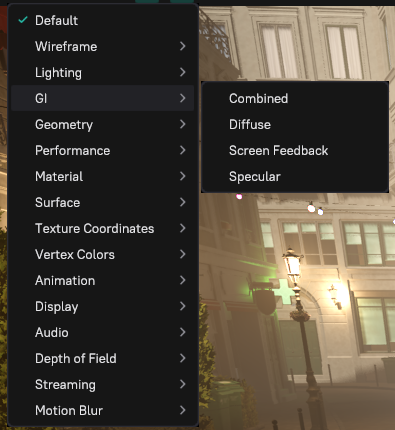
The editor's Render Mode menu (see Render Modes) has these views for GI and lighting:
| Menu | Entry | Shows |
|---|---|---|
| GI | Diffuse | Only the diffuse GI, as it is added to the image. |
| GI | Specular | Only the specular GI (reflections). |
| GI | Combined | Diffuse and specular GI together. |
| GI | Screen Feedback | Only the bounce light that screen-probe RTGI fed back from last frame. |
| Lighting | Diffuse Only, Specular Only | The diffuse or specular part of the lit image. |
| Lighting | Direct Lighting Only | Direct light only, with no sky, reflections or AO. The view for judging shadows, in whatever direct lighting mode is active. |
| Surface | Ambient Occlusion, Ray Traced AO | The combined material and screen-space occlusion, and the RTAO term. |
| Lighting › Probe Direct Lighting, ReSTIR Direct Lighting, Guided Lighting | various | Diagnostics of the direct lighting modes. |
In a game build without the menu, App.ViewRenderMode sets the same views by number, for example App.ViewRenderMode 24 for GI Diffuse (25 = GI Specular, 26 = GI Combined, 60 = GI Screen Feedback, -1 = off).
Stats
The stats under Renderer/GI/ report what the GI pass is doing:
Renderer/GI/RTGI/Backend(Hardware, Software or None) andRenderer/GI/RTGI/Fallback, the reason diffuse GI is off (for example "RT disabled", "GAL RT unsupported", "No valid RT scene").Renderer/GI/RTGI/ScreenFeedback: whether multi-bounce is active, and why not.Renderer/GI/RTGI/RaysTraced,ProbeWidth,ProbeHeight: the probe grid and its ray count.Renderer/GI/RTReflections/BackendandRenderer/GI/RTReflections/Fallbackfor reflections.Renderer/GI/RadianceCascades/*for radiance cascades, andRenderer/GI/RTGI/Cache/*for the radiance cache.
Rendering.GI.ProfileGPU records detailed GPU timings of the GI stages in profiling builds.
Troubleshooting
| Symptom | Cause and fix |
|---|---|
| No bounce light at all, the GI views are black | No ray tracing backend. Check Renderer/GI/RTGI/Fallback. Turn on Rendering.RT.Enable and restart the renderer, or use the software backend (Rendering.GI.TraceBackend 2). Also check Rendering.GI.Enabled, Rendering.GI.RTGI.Enabled, and that no post process volume turns GIEnabled off. |
| The diffuse technique is path traced, but there is no bounce light or the lighting is missing | Path tracing needs Rendering.RT.Enable, hardware ray tracing and a path tracing pass in the render pipeline. Without them no other GI technique steps in. |
| Reflections show only reflection probes | Ray tracing is unavailable for specular techniques 1 and 2 (Renderer/GI/RTReflections/Fallback), or the surface is rougher than the roughness threshold (0.6 on the software backend). Without ray tracing, use technique 0 to keep screen-space reflections. |
| Interiors are darker after switching to NRD | NRD writes no history for screen feedback, so GI drops to a single bounce. Use the built-in denoiser (Rendering.GI.RT.Denoiser 0). |
| GI brightens towards the screen edges, or light leaks into closed rooms | Ray hits on surfaces that were off screen last frame receive the unoccluded sky. Turn on Rendering.GI.RTGI.RadianceCache, then Rendering.GI.RTGI.HitSkyVisibility. |
| Light leaks through foliage, fences or other alpha-tested geometry | Diffuse GI traces opaque geometry only and ignores alpha-tested surfaces, so they do not block bounce light or the sky. Back thin alpha-tested walls with opaque geometry. |
| Light leaks where distant geometry should block it | Objects further than Rendering.GI.SceneGatherRadius (256 m) from the camera and off screen are not in the ray tracing scene. Raise the radius. |
| Noisy, crawling bounce light | Too few rays for the scene. Raise Rendering.GI.RTGI.RaysPerProbe or SpatialPasses (or a higher preset), try Rendering.GI.RTGI.VRRT, or switch to radiance cascades. Noise at the screen border: try Rendering.GI.RTGI.GuardBand. |
| Bounce light lags or smears after a light changes or an object moves | The temporal history is long. Lower Rendering.GI.RTGI.DiffuseHistoryWeight. With NRD, lower Rendering.GI.RT.NRD.AccumulationTime. |
| Reflections flicker from frame to frame | With NRD, lower Rendering.GI.RT.NRD.SpecularPrepassBlurRadius first. Reflections that read the radiance cache flicker less since 0.12. |
| Emissive surfaces do not light the room | The material has EmissiveLighting off, Rendering.GI.RTGI.EmissiveProxies is off, or the emitter is too dim in nits for the scene. |
| One light adds no bounce light | It has SkipGI on or GIMultiplier 0. |
| The software backend looks different from hardware | It has no alpha-tested surfaces and uses coarser probe spacing for radiance cascades. Switching backends also restarts the GI history. |